Before installing VEX STEPmaker, you need to download and install FreeCAD 0.21.2. To install VEX STEPmaker and FreeCAD on a Mac computer, first determine and download the appropriate installer for your system. Follow these steps to identify the correct installer and install VEX STEPmaker and FreeCAD on your macOS device.
Download and install FreeCAD 0.21.2

On your Mac computer, select the Apple icon.
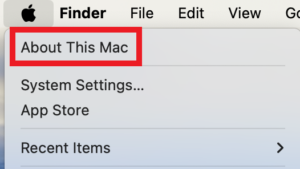
Select About This Mac from the dropdown menu.
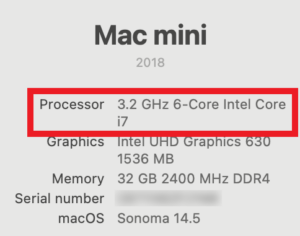
If your computer says it has an Intel processor, you will need to download the Intel installer.
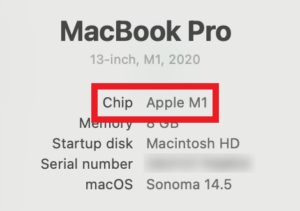
If your computer says it has an Apple chip, you will need to download the Apple Silicon installer.
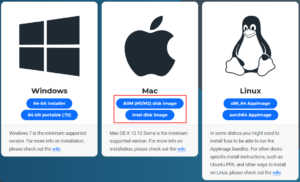
Download and install FreeCAD 0.21.2 .
If your computer uses an Intel processor, select Download for Mac (Intel).
If your computer uses an Apple chip, select Download for Mac (Apple Silicon).
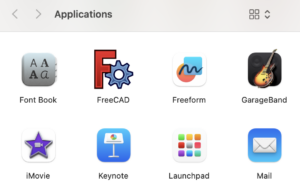
make sure the software is in the Applications.
Download the Installer
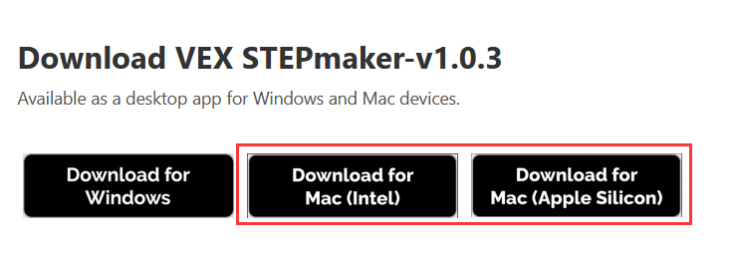
Go to VEX STEPmaker Download
If your computer uses an Intel processor, select Download for Mac (Intel).
If your computer uses an Apple chip, select Download for Mac (Apple Silicon).
Install VEX STEPmaker
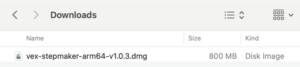
Once you have downloaded the correct installer for your Mac computer, double-click on the installer to begin the installation process.
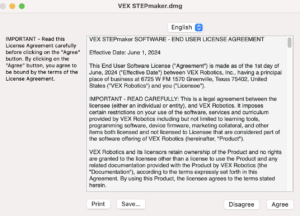
The End User License Agreement will appear. After reading it, select Agree.

Once the installer has finished loading, the installation screen will open.
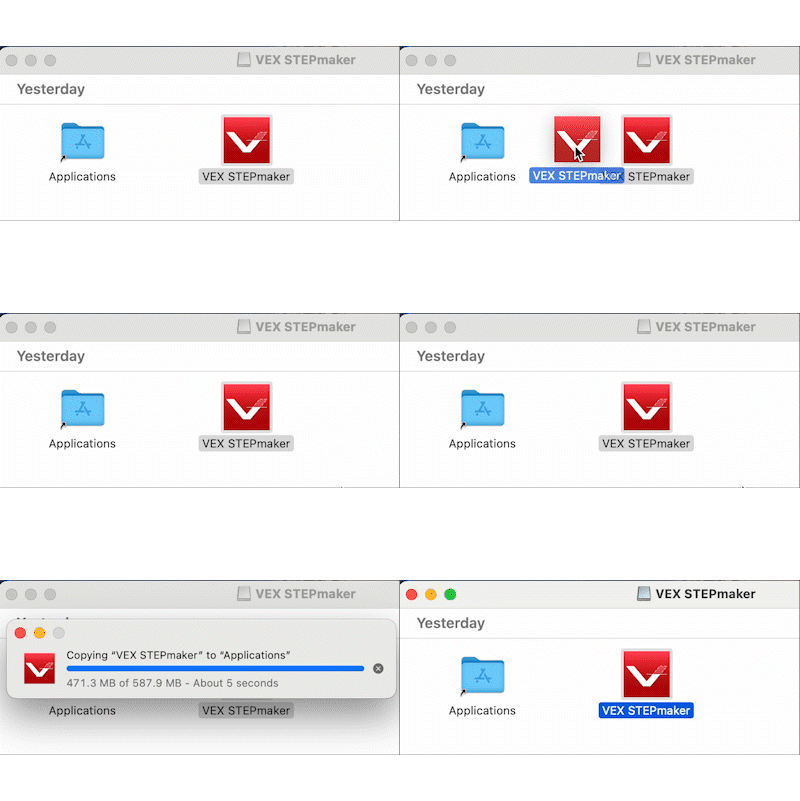
Click and drag the VEX STEPmaker application to the Applications folder.
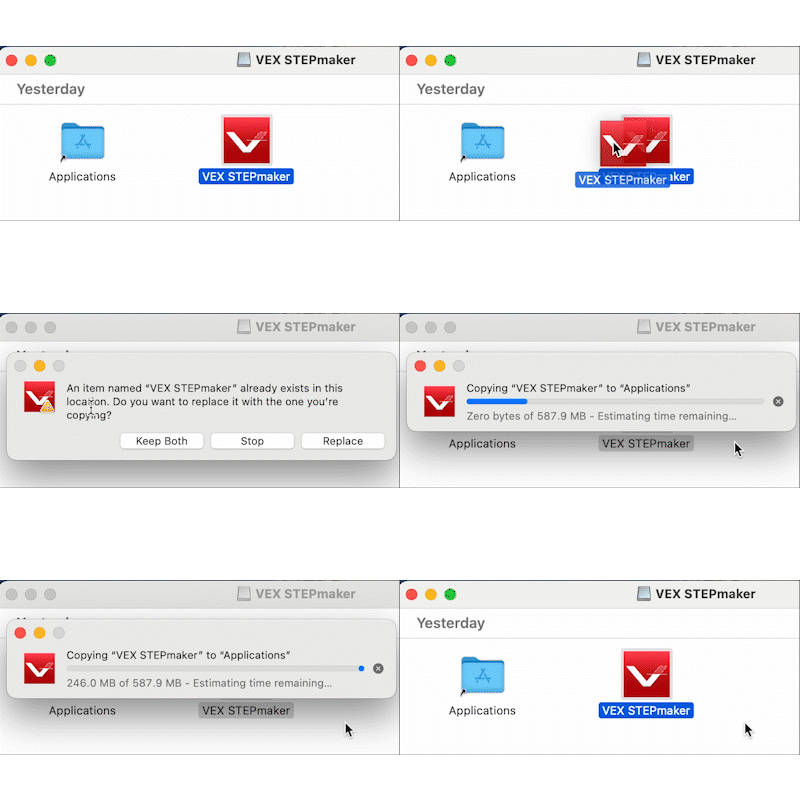
If a dialog box asks you if you want to replace an existing VEX STEPmaker, select Replace.
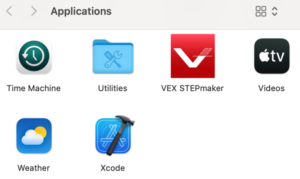
Access your Applications folder and select VEX STEPmaker.
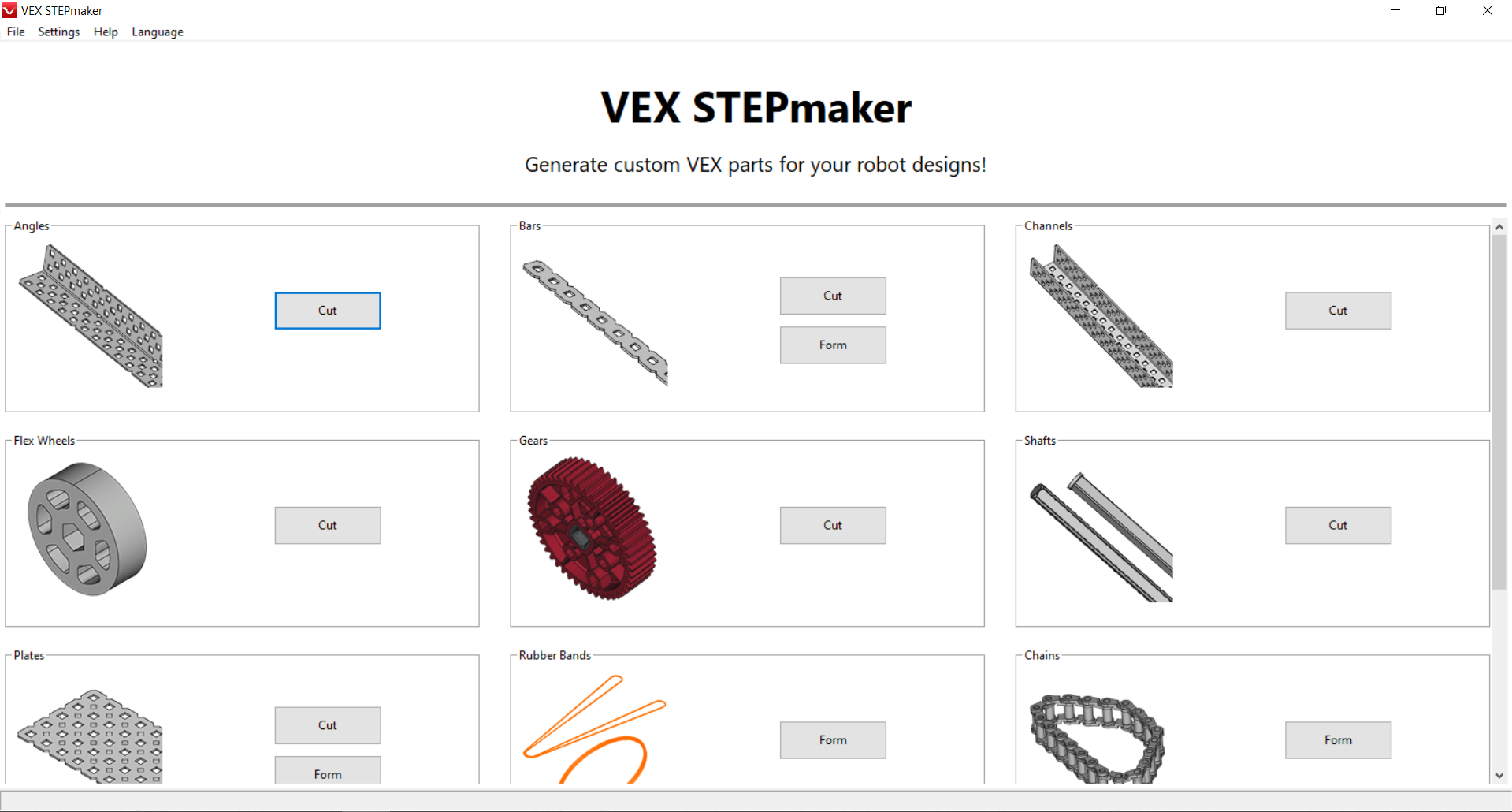
Begin working in VEX STEPmaker.